.svg)

Guardsquare workflows can be easily automated as part of your CI/CD pipeline using Bitrise. In this blog, I will show you an example of how Bitrise can be set up to include Guardsquare’s testing and protection products into your existing workflows to produce protected builds. You can easily adapt the example to suit your particular environment.
Required knowledge: you need to have general knowledge about Bitrise. No special knowledge or expertise is required to get the integration up and running.
Pre-requisites
Create a service account for use with the Guardsquare CLI:
Generating a new SSH keypair
- Use ssh-keygen to generate a new key pair.
- Start the ssh-agent: eval "$(ssh-agent -s)".
- Add the SSH private key to the ssh-agent and store the passphrase in the keychain if applicable.
ssh-add --apple-use-keychain ~/.ssh/<your-key-file-name>
Creating the service account in the Guardsquare platform
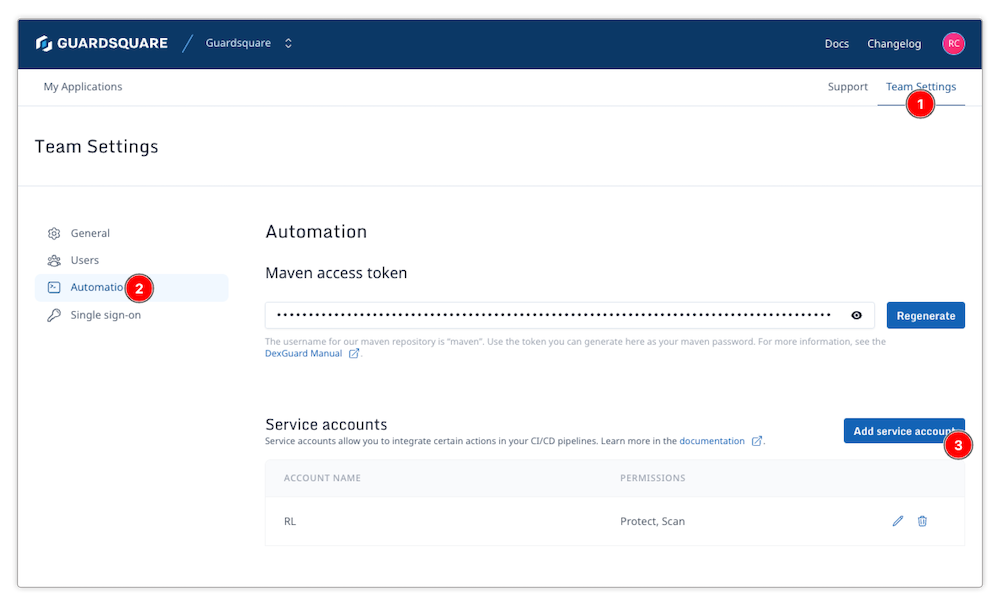
- As a user with the Manage automation permission, navigate to the Team Settings tab and click Add service account in the Automation section.
- Creating a service account
- Add the SSH public key that you have generated at the previous step.
- Select the permission level for the service account.
Setting up Bitrise integration
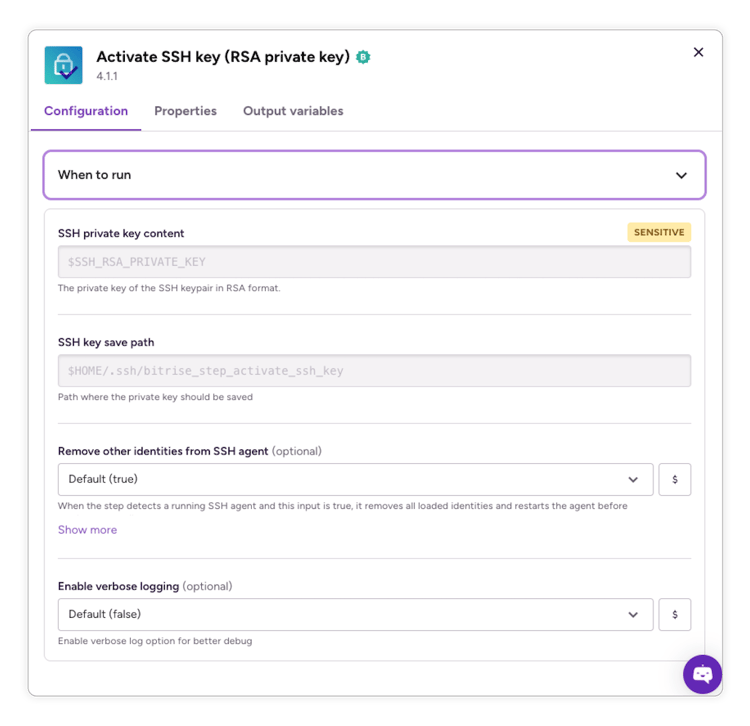
Add the Activate SSH Step to your Bitrise workflow
Add the Activate SSH Step to your Bitrise workflow. The default settings should be sufficient. This step will be used to activate the SSH key you generated as part of your service account.
Add your SSH private key to Bitrise secrets
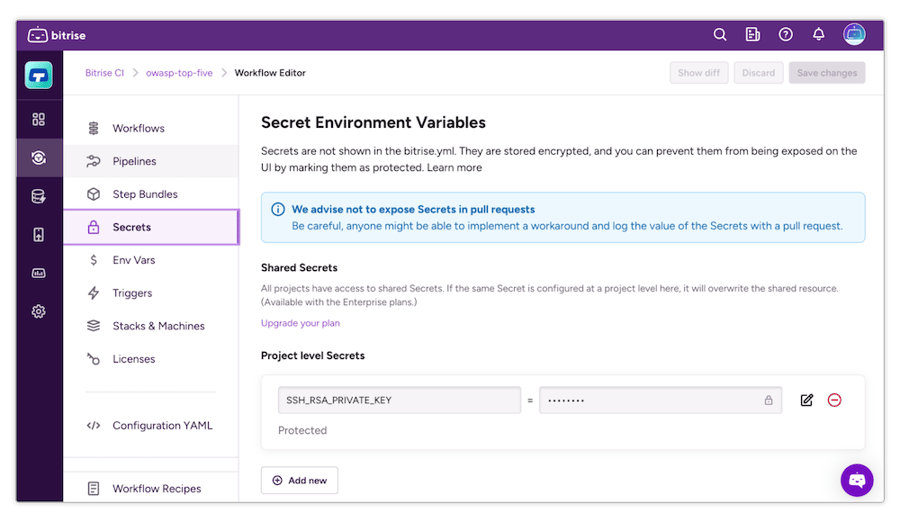
- Navigate to your workflow
- Click "Edit"
- Select the "Secrets" tab
- Add a Secret to your workflow, titled SSH_RSA_PRIVATE_KEY with the value of the private key of the key pair you generated for your Guardsquare service account
Android specific setup steps
Fine tuning Gradle setup
Ensure you have set up the Guardsquare Gradle plugin in your Android Studio project locally. Once done, ensure the public key can be used by the Gradle plugin as part of your workflow:
Using the public key
The SSH key can be used by the Gradle plugin automatically.
In the plugin you can easily specify different build flavors, and in the CI environment, it is best to set the noBrowser option to true.
Adding the Guardsquare Protection step to your workflow
Android
Adding the Guardsquare protect step to your Bitrise workflow is as easy as adding a Script as a Step in your workflow:
- On your workflow editor page, click on the + button (the Script should be added after the SSH key was activated):
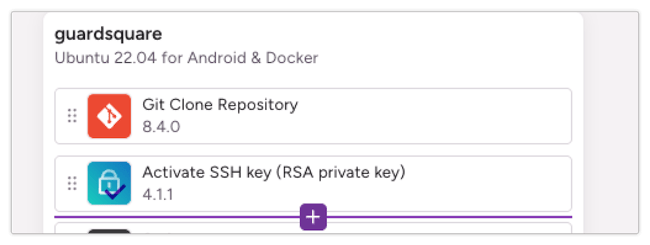
- Select “Script”
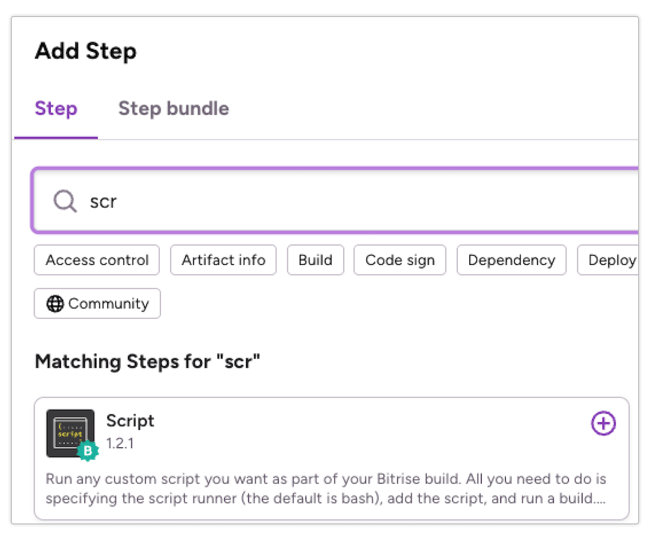
- To the script, add the following lines:
The above will run the guardsquareProtectApk command using the configuration file you specified in your local build.gradle guardsquare block assuming you checked in the made changes:
And will then zip & store the content of the app/build/guardsquare/out/protected/ directory in the bitrise deploy directory so you can download the artifacts from the build server later. The final Workflow should now consist of the following Steps:
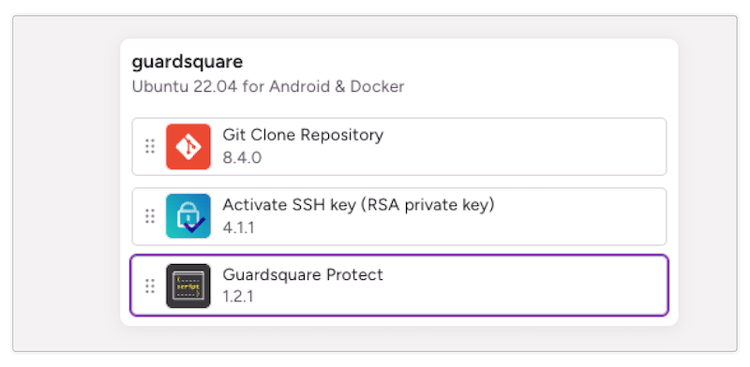
iOS
Adding the Guardsquare protect flow to your Bitrise workflow for iOS, is as simple as adding 2 scripts & changing the Toolchain that will be used by Xcode when building the project:
- On your workflow editor page, click on the + Button (the Script should be added after the SSH key was activated):
- Select “Script”
-
To the script, add the following lines:
These commands will install the Guardsquare CLI & toolchain on the build system without the need to interact with the CLI itself (assuming your SSH connection is correctly set up)
- Now add an additional option for the xcode build command in your Xcode Archive & Export for iOS Step:
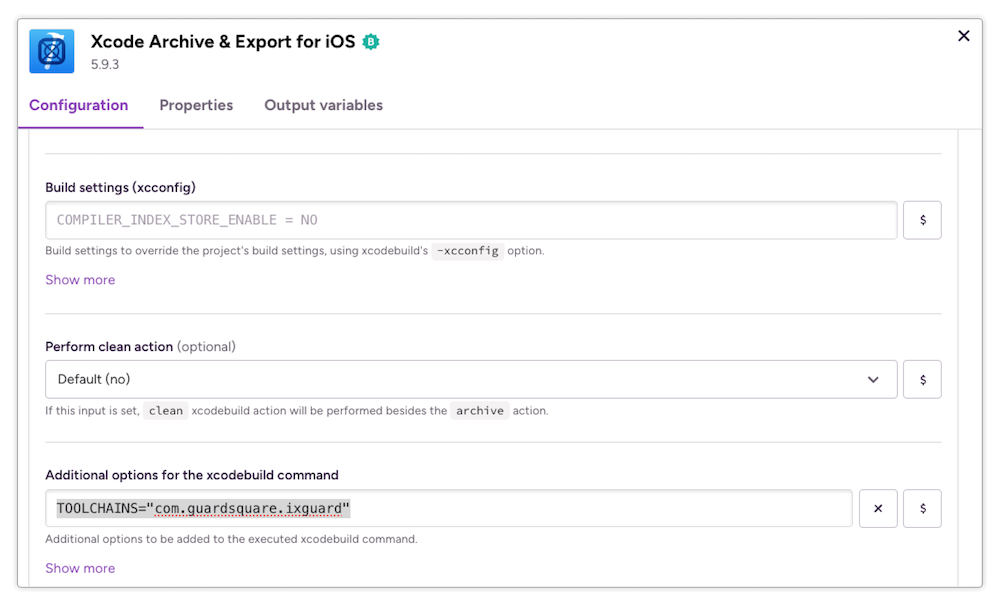
TOOLCHAINS="com.guardsquare.ixguard" - Lastly, add another script after the Xcode Archive & Export for iOS step and add the following lines:
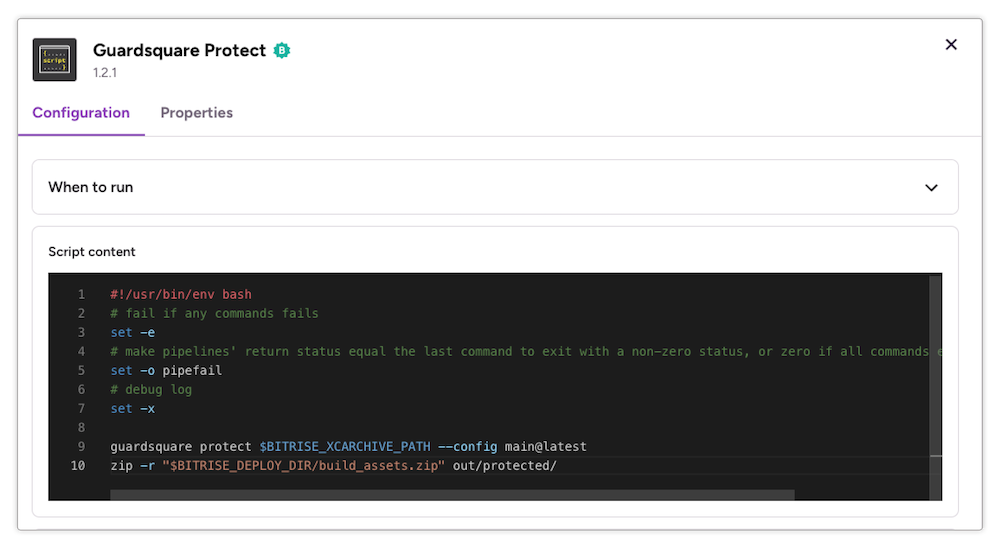
The above commands will protect the created xcarchive with the mentioned main@latest configuration file & will then zip the created artifacts into the build assets you can download after the build finished.
Adding the Guardsquare Security Testing step to your workflow
Adding Security Testing to your Bitrise workflow enables you to continuously scan your application for security issues, without any manual steps. With fast and easy integration, AppSweep is the most efficient way to shift left and tackle security issues as early on in your SDLC as possible. To add the Security Testing step to your workflow, you can go through the following (for both Android and iOS):
- Go to the "Workflows" tab
- Click "+" where you want to add the scan. This step needs to be added after building and signing your app.
- Search for "appsweep"
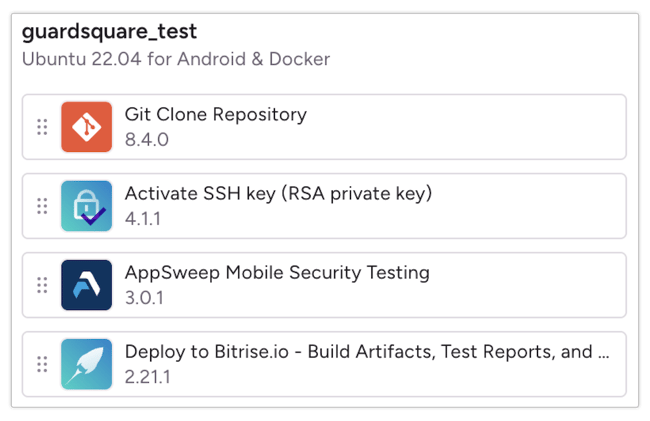
We recommend scanning your unprotected application, as that will give the most comprehensive results of the vulnerabilities in your application. In your pipeline, this can e.g. then look like the following (for Android):
Or like the following (for iOS):
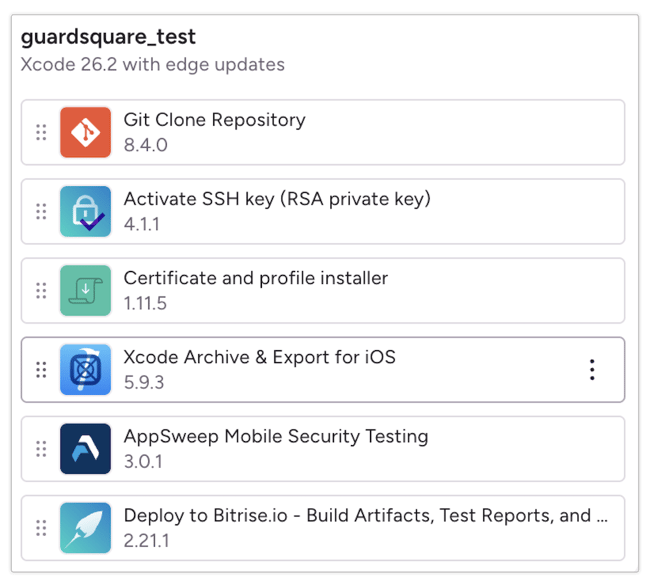
Note: We recommend scanning your unprotected application as that will give the most comprehensive results of the vulnerabilities in your application.
Scanning your app
By default you do not have to configure anything. The step will pick up the app that was just built in one of the previous steps, upload it (together with the mapping file (Android) and dSYM files (iOS).
Viewing results
The build logs will contain the scan URL:
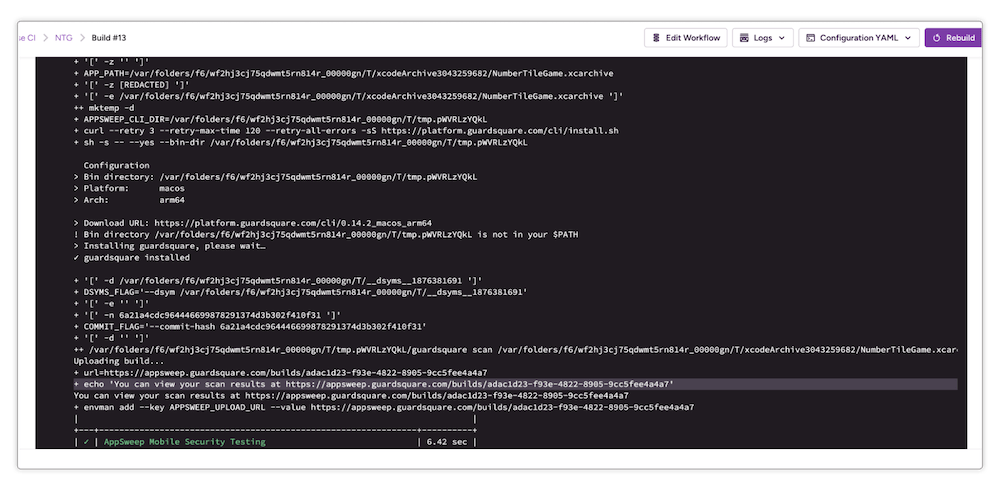
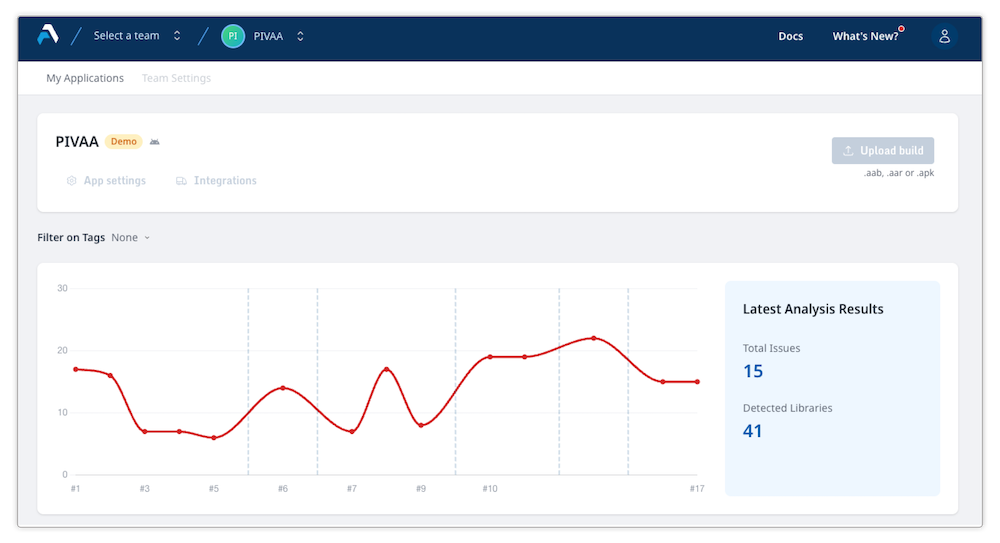
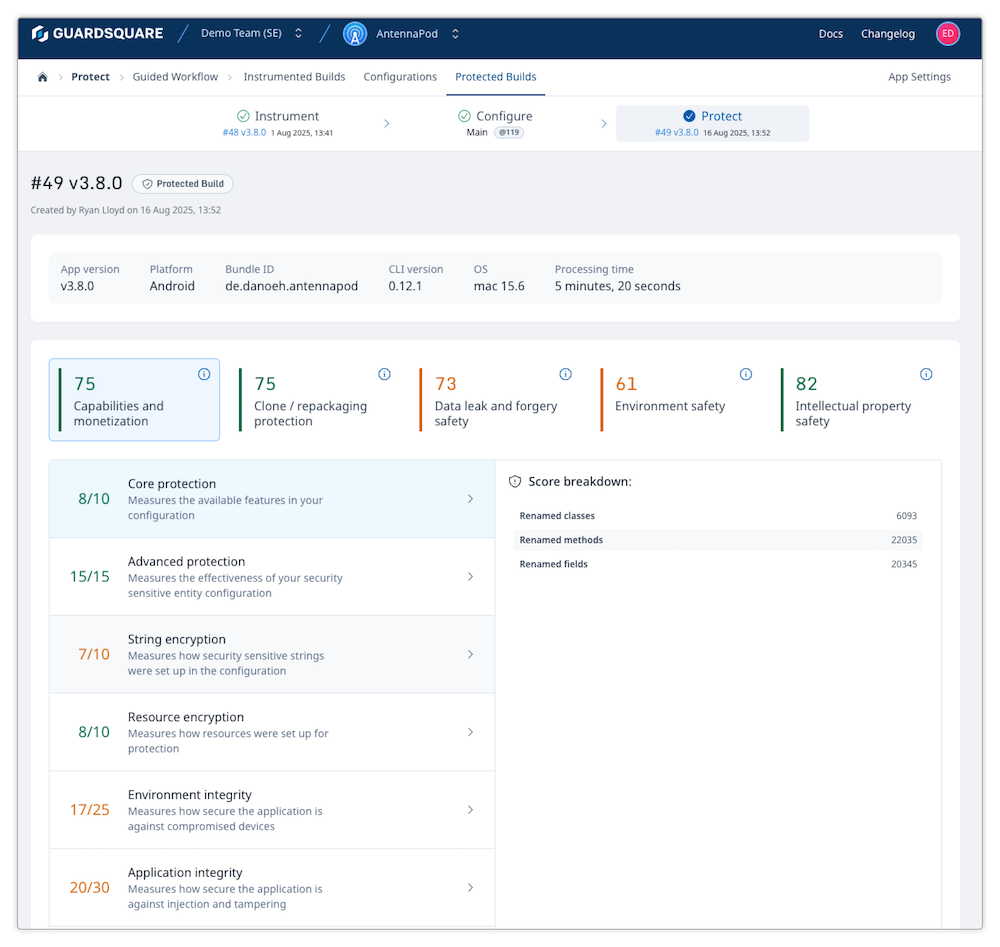
You can access the detailed results in the Guardsquare platform.
Conclusion
Automating and integrating Guardsquare’s protection and security testing products into Bitrise pipelines allows you to shift left so you can detect and fix security issues as soon as possible while keeping all of the created builds protected in an automated way. The integration of the tools boils down to:
- Implementing workflow scripts to run the Guardsquare protection commands.
- Using a plug and play plugin to perform security testing scans.
The Guardsquare platform allows teams to view security testing results and protection reports to monitor newly introduced issues or degradations in protections.
 You can easily modify this process to incorporate your own logic, such as application security scanning, email notifications, and more.
To learn more about Guardsquare, get in touch with us today.